
If you are presented with the set up your device prompt, follow the guide below. You will need to know your Barworks password at one of the stages.
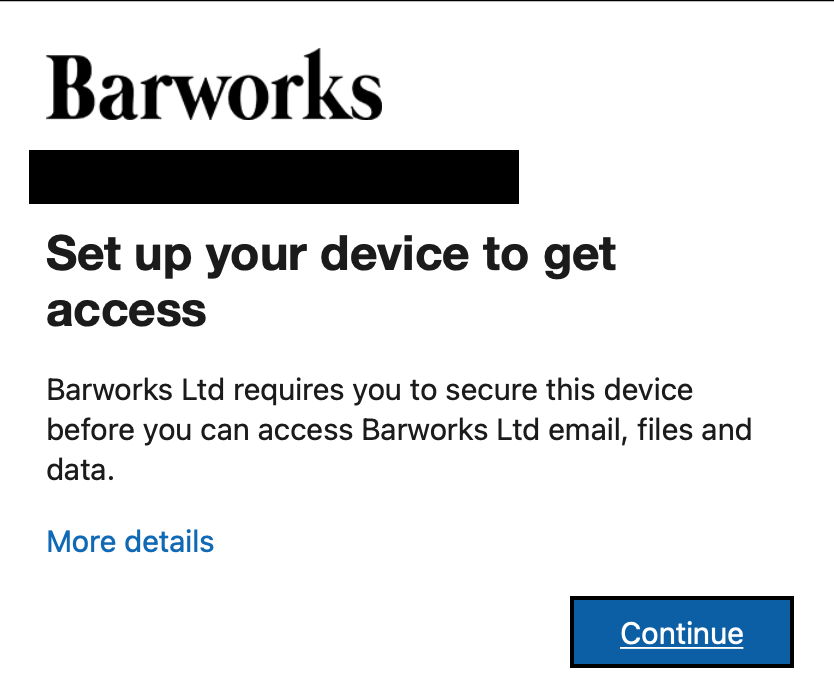
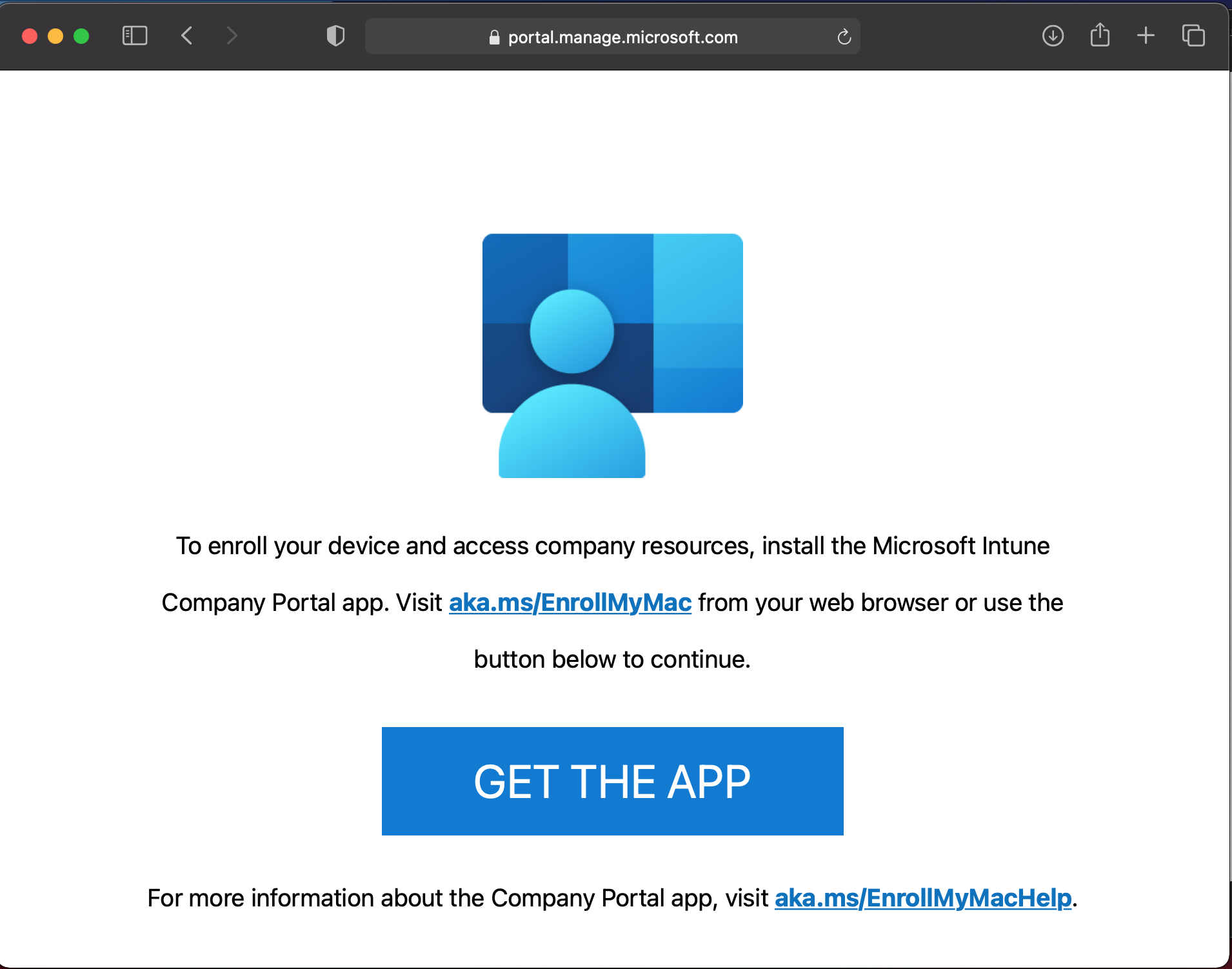
Click continue & get the app
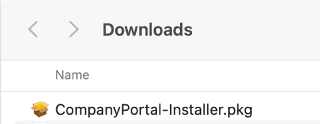
Once the download has finished, locate the ‘CompanyPortal-Installer.pkg’ file in your downloads folder.
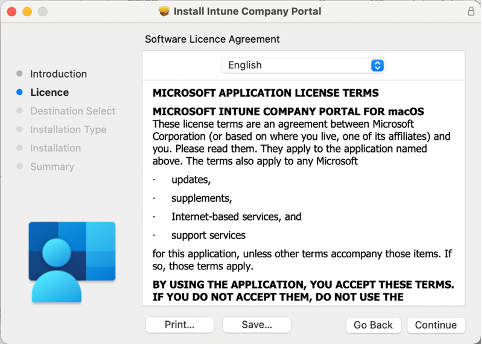
Run the installer and follow the prompts to complete the installation process.
Once installed, Go to Finder > Applications and open Company Portal, where you will be prompted to sign in. If your work email account appears in the list, select it, click continue and enter your password. If it doesn’t, click the ‘+’ button and enter your email address manually.
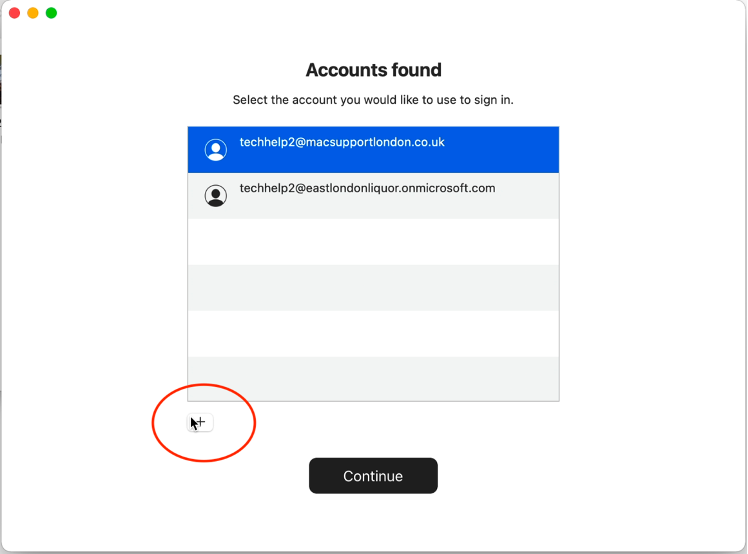
Click Begin

Read the Notice and click continue

Click on Download Profile
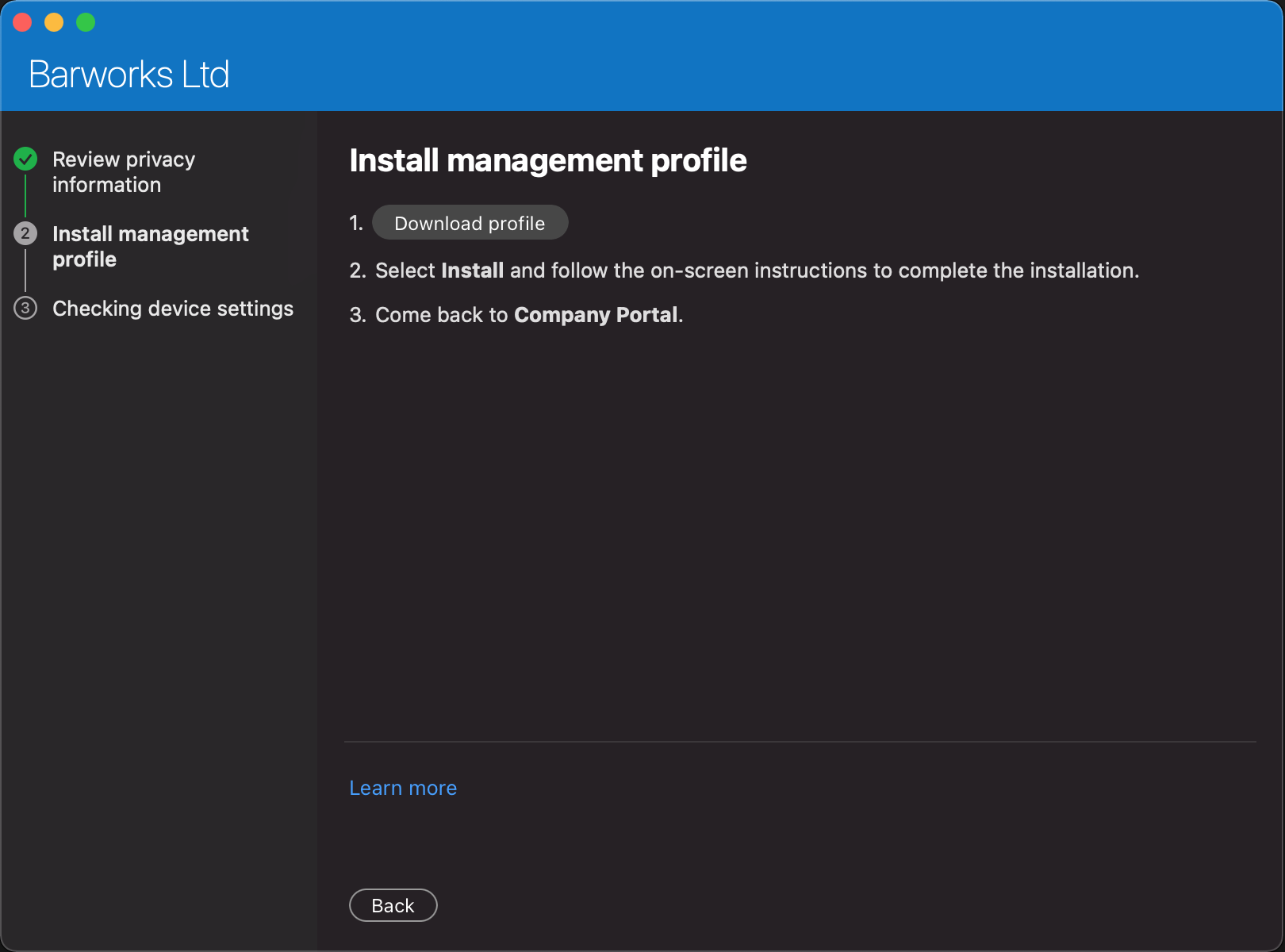
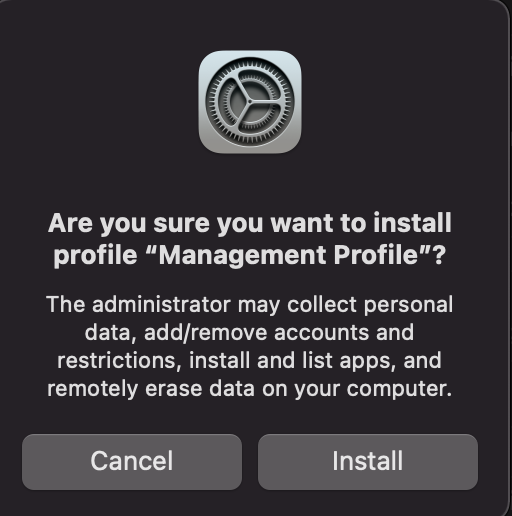
Choose Install
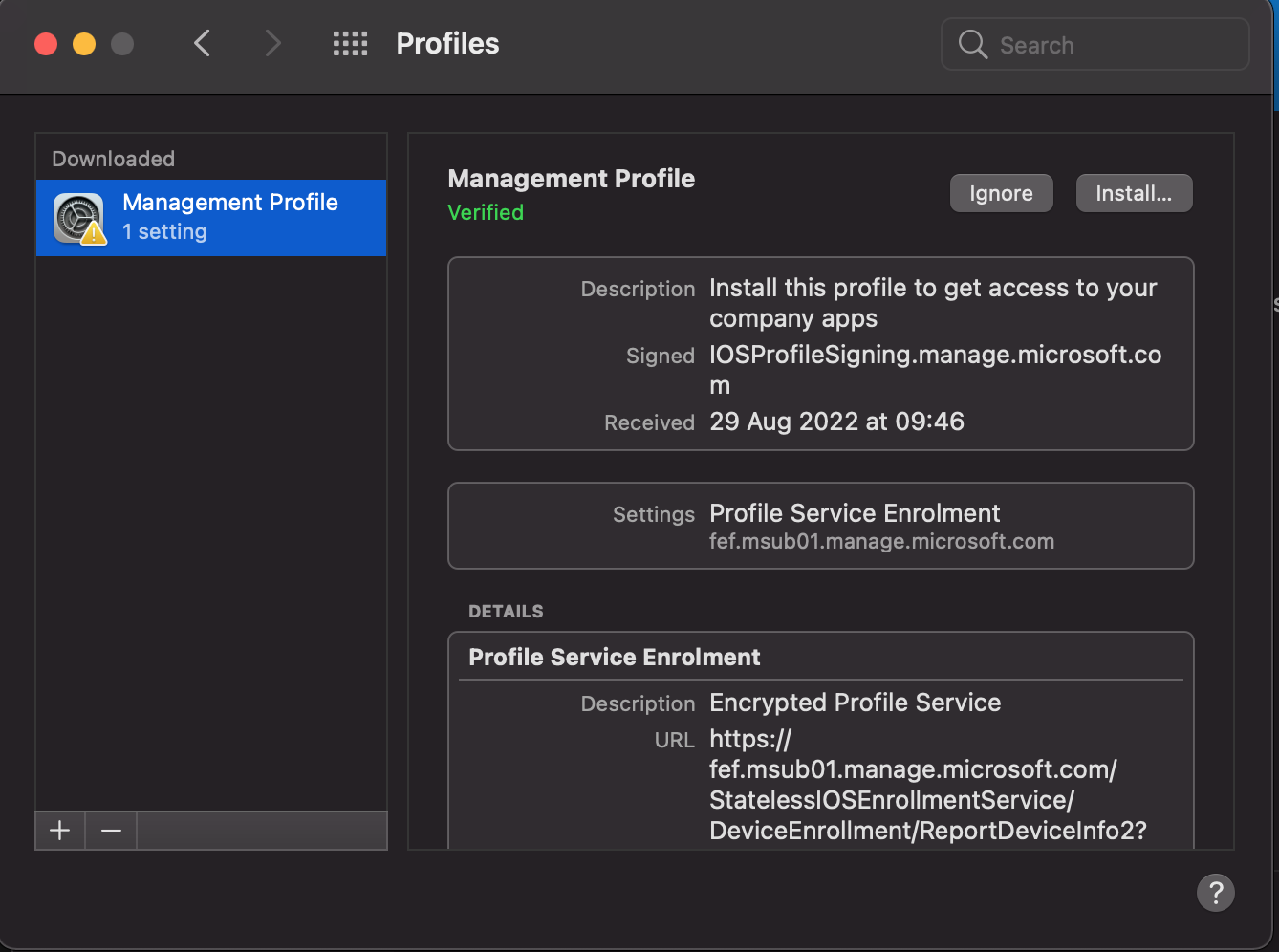
Click on Install (top right)
Enter your Mac's admin password
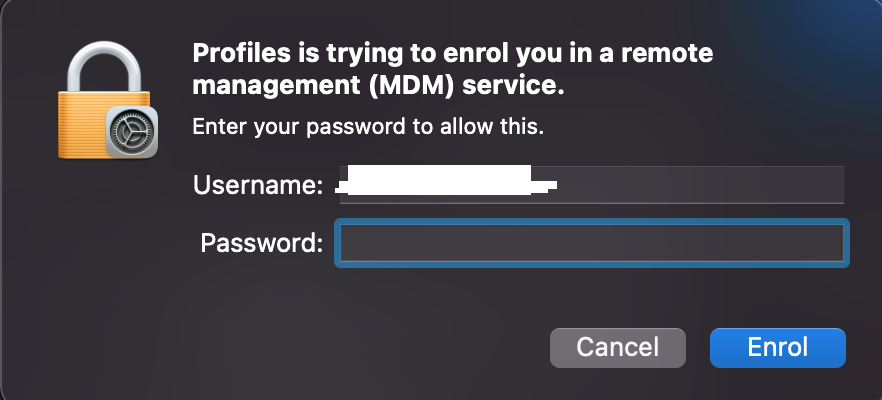
If at any point you receive a Keychain request for "Microsoft Workplace Join Key", just enter your Mac admin password and click 'Always Allow'.
Thats It you're done!!
----------------------------------------------------
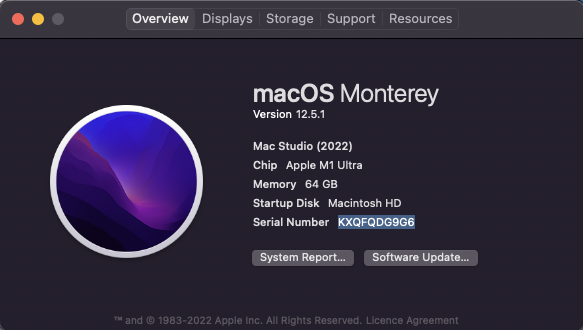
However, If your installation fails send your Mac serial number
to helpdesk@macsupportlondon.co.uk
Access mail in the meantime via www.office.com
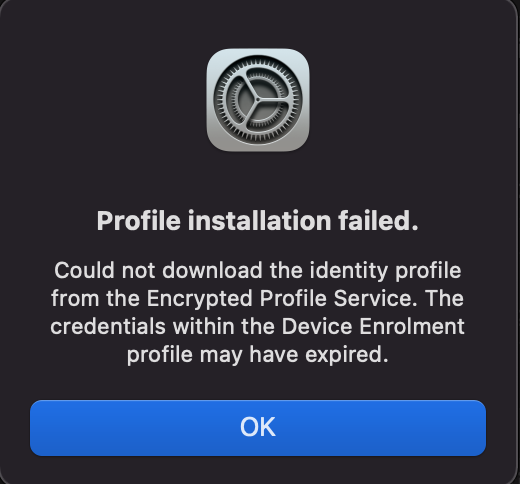
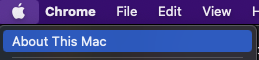
You can get your serial number from About this Mac
Why are we doing this:
- Allows us to determine if devices are compliant and secure
- Secures access to extended features of 365, such as Teams, Onedrive & Sharepoint
- Secures devices that are personally owned.
- Allows us to keep corporate apps up to date
- Allows us to distribute new apps if required.
If you have any questions please contact helpdesk@macsupportlondon.co.uk
0 Comments