
Your Microsoft 365 cloud services support a number of ways to collaborate online. To get the most out of your 365 subscriptions the optimal supported configuration is presented here.
Optimal user experience.
- Outlook on your Mac for email, calendars, contacts*
- Teams on your Mac for chat & meetings
- Outlook.app & Teams on your iPhone / Android
- One Drive for office document collaborations.
Users can still use Apple Mail and iCal but some features and functionality are not directly supported. Apple Mail & iCal are great for personal mail etc, as these are supported by iCloud which are tied to personal Apple ID's but lack the feature rich requirements of integrated business apps.
Check for Outlook In Applications, if not installed download the Office Apps
Office Apps download for Business pro license holders only
Once downloaded install as per normal on a Mac, If you don't use excel, word, teams etc, please just use Outlook via a web browser
Log Into webmail
Contacts that you want to import
As Outlook doesn't support the same contact standards as Apple the best option is to keep everything in the Outlook apps. This requires importing contacts from Apple Contacts into Outlook.
Importing Contacts: 1 minute video
*There are a number of paid for synchronisation apps available but these are not directly supported by us.
To import contacts from Apple, log directly into your email via a browser, Open Apple Contacts and drag the top "All Contacts" to your desktop, then drag them from the desktop to the contacts area in your browser. Watch the 1 minute video above to see how I did it.
Please note: You could just as easily organise which contacts you want to import into a folder in Apple contacts using the File>New Group and dragging that instead of all contacts
Outlook & Teams for iOS / Android
Please access these via the App Store on your handheld devices, log in with your email and 365 password. Arrange your icons in the dock or home screen for easy access.
Invitations
When an invitation is received you will be presented with an incoming email with options to Accept, Decline or Propose a new time, If you change your mind about a meeting after the fact, go to the event in Outlooks calendar to edit your RSVP.
When you RSVP to an invitation, the original email can be found in your sent items (because you responded)
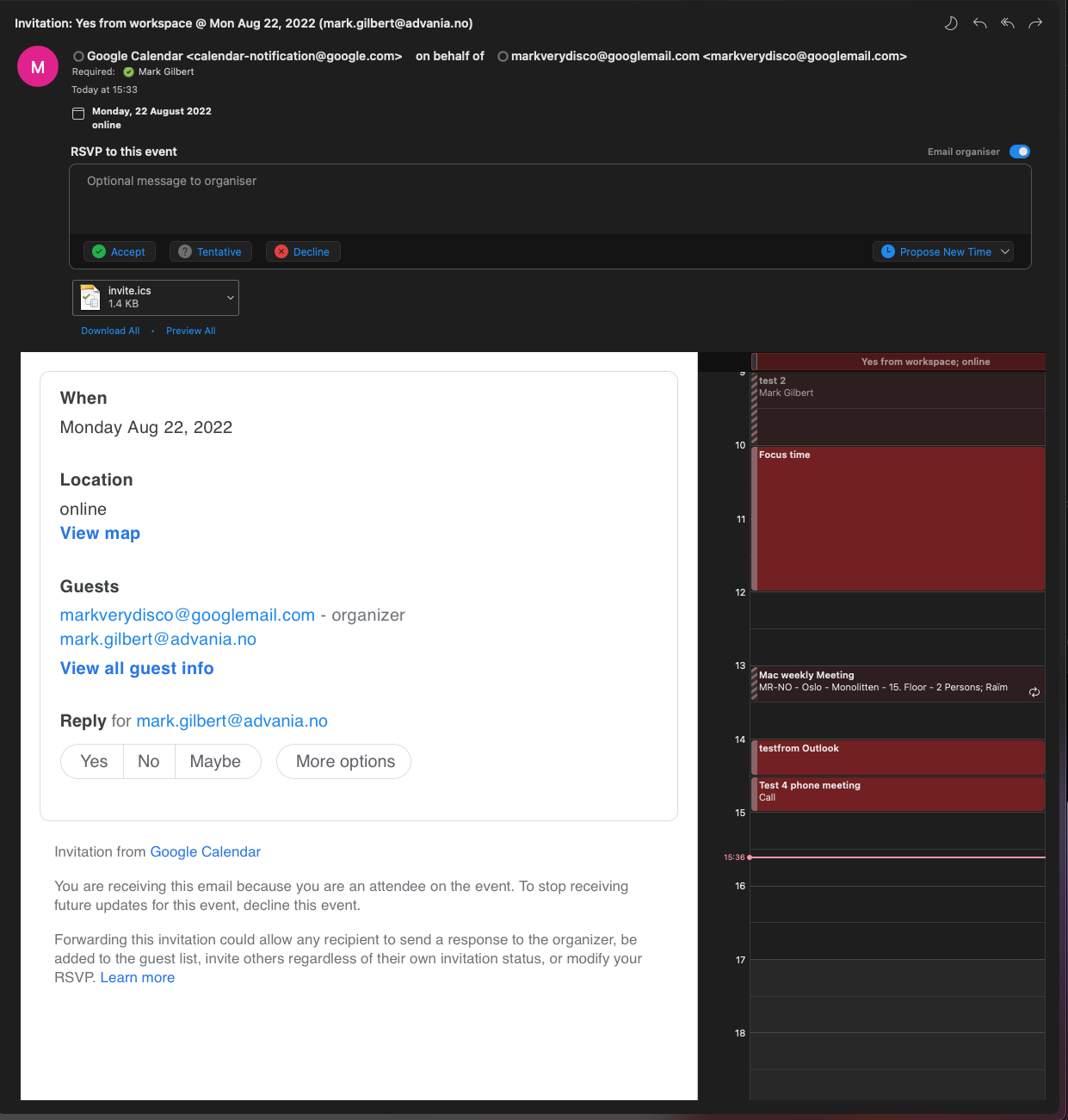
Overlaying iCal Calendars with Outlooks so you can see both Personal & Business Events
You can easily share your iCal Calendars so they are overlayed in Outlooks calendar, however the propose new time function cannot see events from those calendars, but you can see them visually. There are quite a few steps but it's not too difficult.
In iCal right click the calendar you want to share
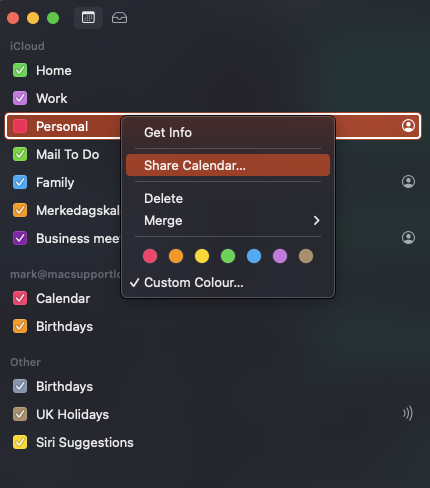
Then check the Public Calendar icon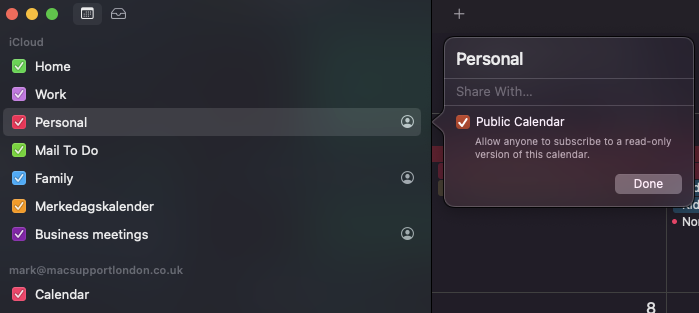
Then click the icon that looks like a person in a circle (in the picture above), then click the sharing icon highlighted here and select Messages
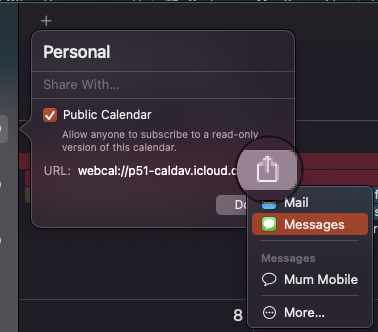
This Invitation will pop up but we just need that long bit of text, copy it using cmd+c

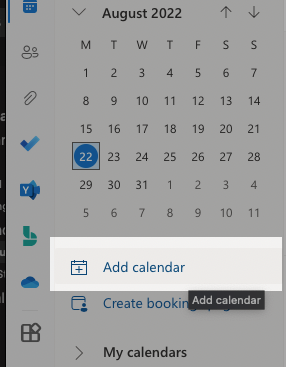
Go to Outlook via a web browser and log in and select calendar, then Add Calendar

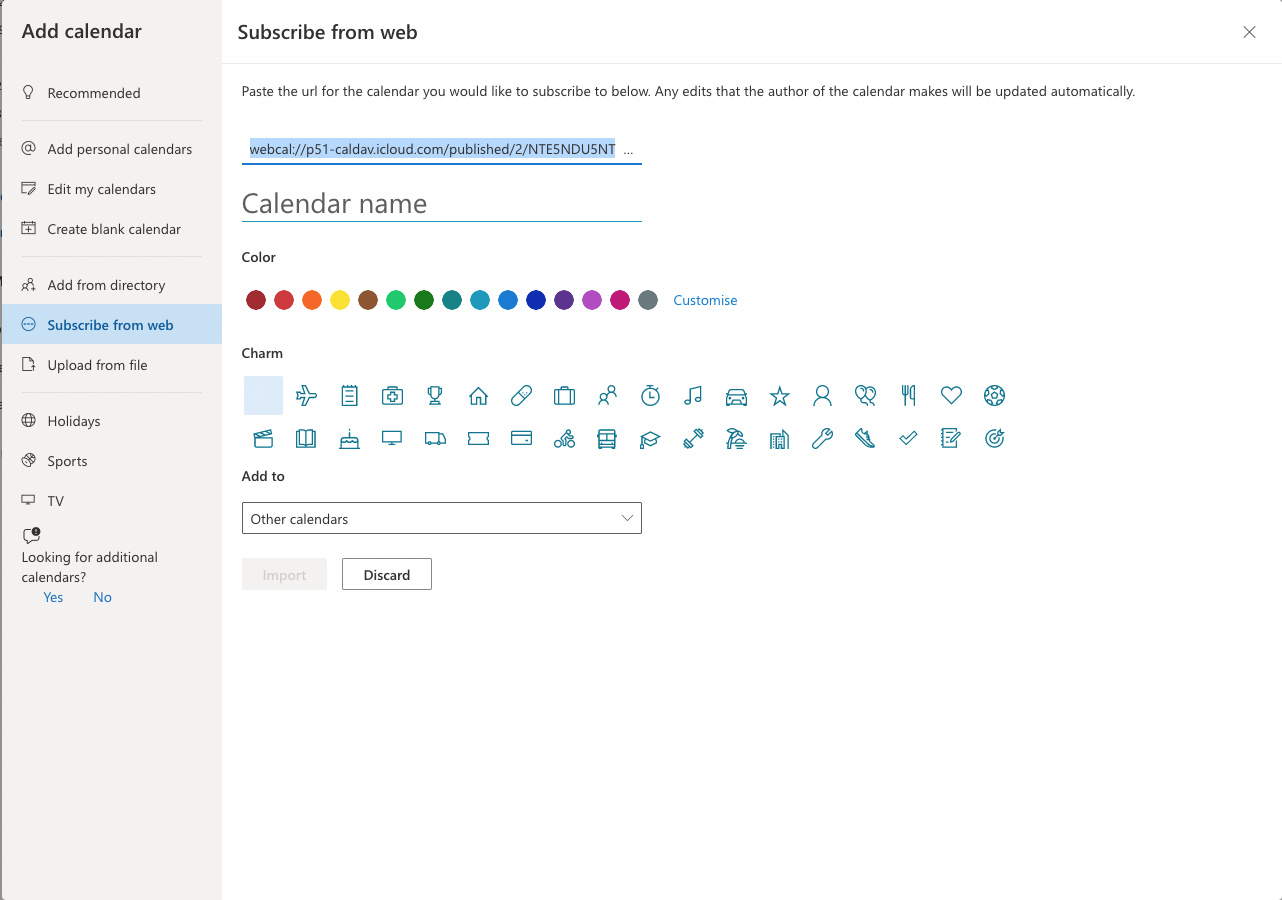
At this next screen select Subscribe from web and paste cmd+v your text as in the picture, give your calendar a name, choose a colour and click import. It's best to have Add to set as Other calendars then click Import.
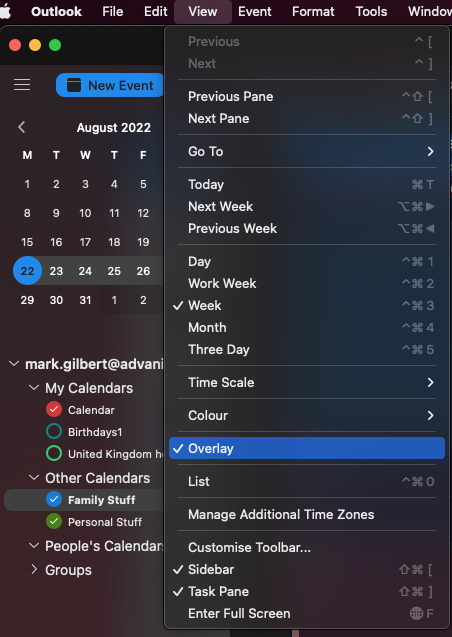
Close the web browser and open Outlook and go to the calendar area, in the main menu click View and select Overlay
0 Comments