
Hello.
In this article we will learn how to connect to the work VPN via the Meraki hardware.
This guide assumes you are already pre-authorised to use the VPN. To obtain credentials, please contact Mac Support London.
Let's start.
1. On your Mac, navigate to System Preferences>Network 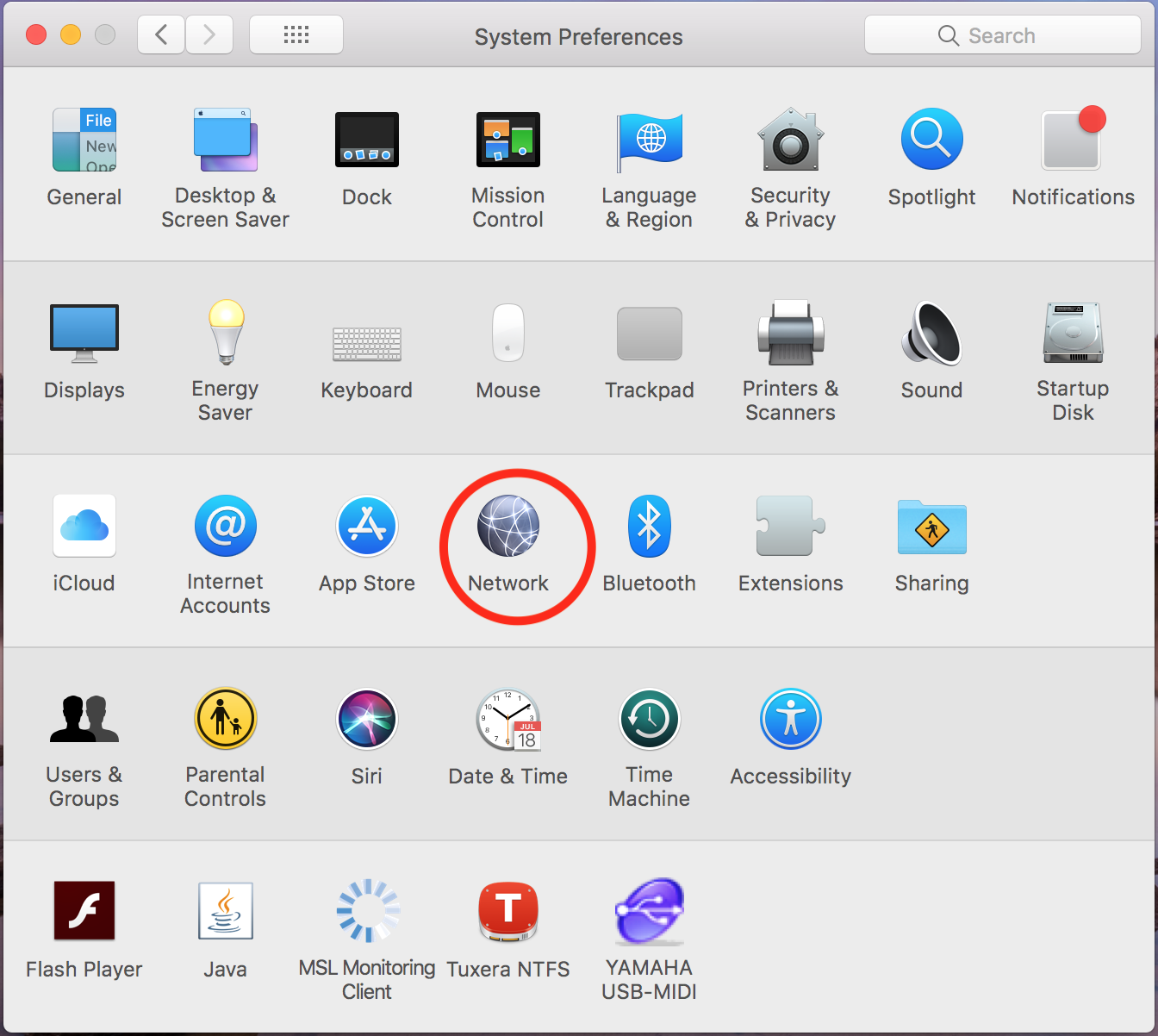
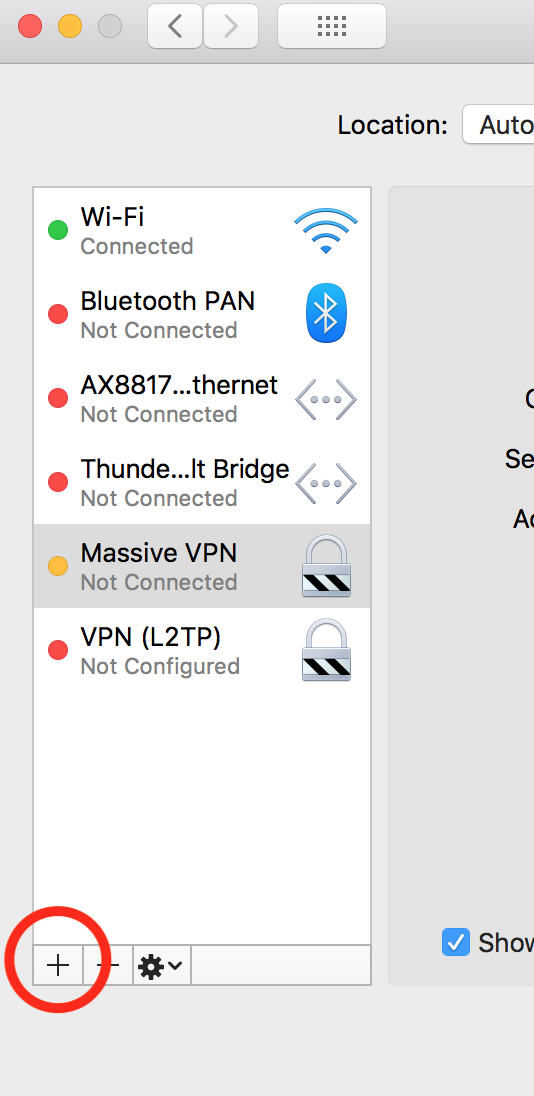
2. A list of network protocols appear on the left. Navigate to the + icon and click on it.
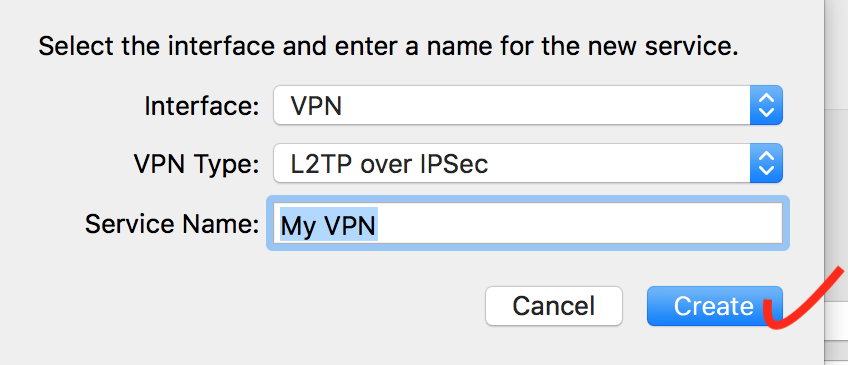
3. From the drop down list select
Interface: VPN
VPN Type: L2TP over IPSec
Service Name: A memorable name (optional)
Click on create.
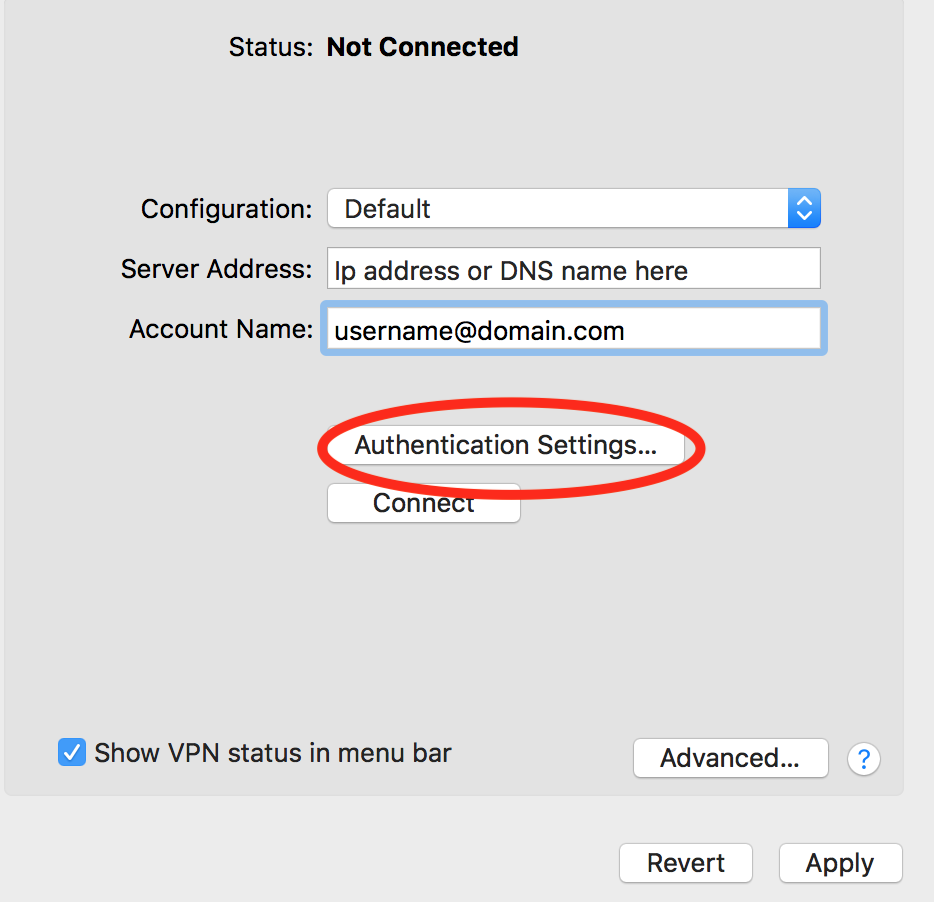
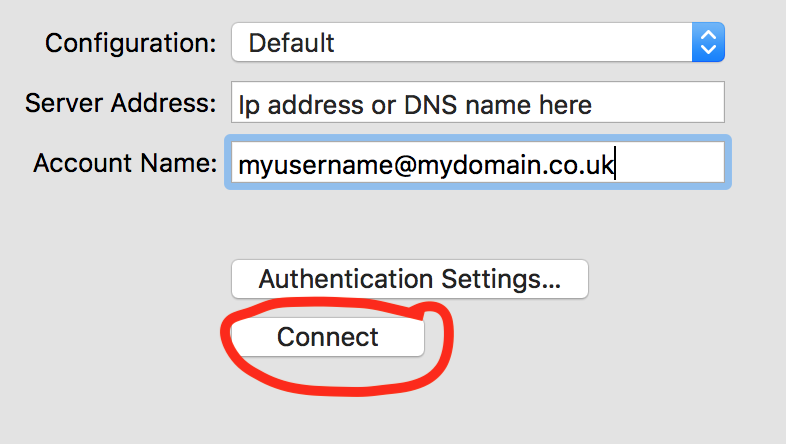
4. Under Server Address, please enter the IP address or DNS name provided by Mac Support London. Under account name, please enter your username. (IE myusername@mydomain.co.uk) and Click on Authentication Settings
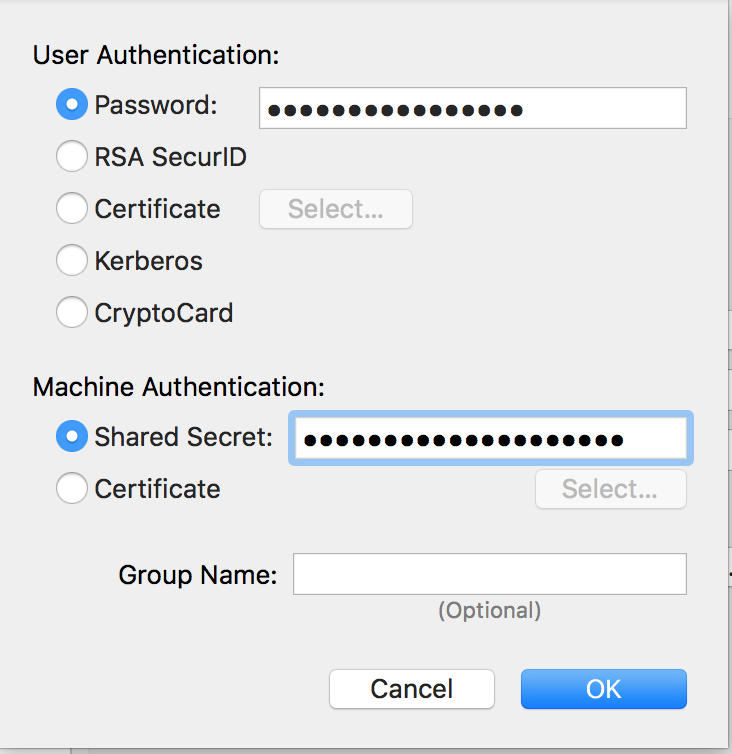
5. Enter the password and the Shared Secret key as provided by Mac Support London. Click OK
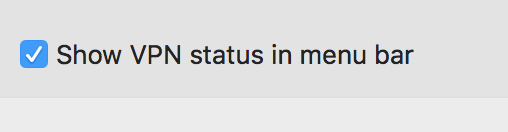
6. Optional. Click to create a shortcut on your menu bar for easier access.
7. You can now connect to your VPN by clicking on Connect or via the shortcut just created.
Accessing the Server once you have established your VPN Connection
Please note that different servers will have different IP addresses. Please confirm with Mac Support London your server's IP address
0 Comments